

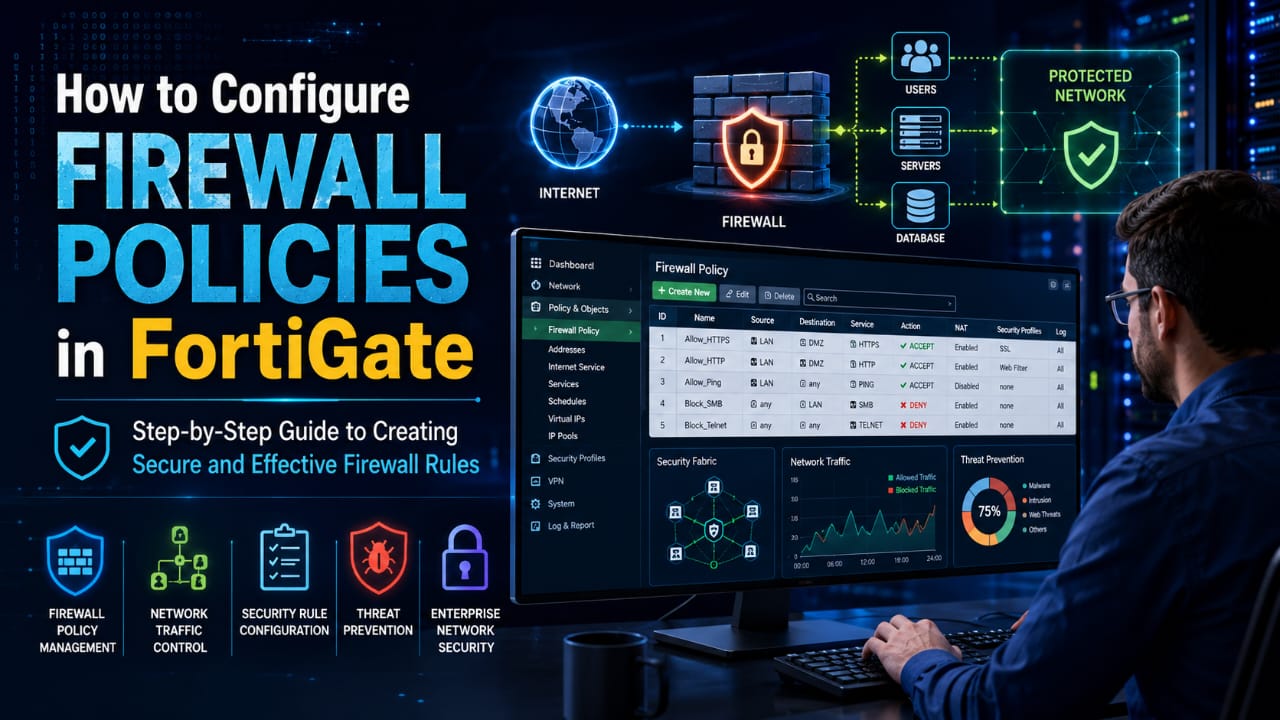
Firewall policies in FortiGate are essential for controlling network traffic, enforcing security rules, and protecting business-critical resources from unauthorized access and cyber threats. As organizations increasingly depend on secure network infrastructures, understanding how firewall policies work has become a valuable skill for IT and cybersecurity professionals.
Individuals who want to pursue Fortinet Firewall training can benefit greatly from learning firewall policy configuration, as it is one of the core concepts covered in FortiGate administration. Properly configured policies help organizations manage traffic efficiently, reduce security risks, and maintain compliance. This guide explains how to configure FortiGate firewall policies and apply security best practices effectively.
What Are Firewall Policies in FortiGate?
A firewall policy is a set of rules that determines whether network traffic is allowed or denied between source and destination interfaces. These policies act as the foundation of network security by controlling the flow of data across the network.
In FortiGate, firewall policies help administrators:
- Allow authorized traffic
- Block malicious connections
- Control application access
- Implement network segmentation
- Enforce security compliance
Without properly configured firewall policies, organizations may expose their networks to unauthorized access and cyberattacks.
Why Firewall Policies Are Important
Firewall policies play a vital role in maintaining network security. They enable organizations to:
- Prevent unauthorized access to sensitive systems
- Restrict unnecessary network communication
- Monitor traffic patterns
- Reduce the attack surface
- Improve compliance with security standards
A well-designed firewall policy ensures that only legitimate traffic reaches critical business resources.
Understanding the Components of a Firewall Policy
Before configuring firewall policies in FortiGate, it is important to understand the key elements involved.
| Component | Description |
| Source Interface | The interface where traffic originates |
| Destination Interface | The interface where traffic is directed |
| Source Address | IP address or subnet initiating communication |
| Destination Address | Target IP address or subnet |
| Service | Protocols such as HTTP, HTTPS, SSH, FTP |
| Action | Allow or Deny traffic |
| Schedule | Time-based access control |
| Security Profiles | IPS, Antivirus, Web Filtering, Application Control |
| NAT | Network Address Translation settings |
Each component contributes to how traffic is evaluated and processed by the FortiGate firewall.
Prerequisites Before Configuration
Before creating firewall policies, ensure the following:
- FortiGate firewall is properly installed
- Interfaces are configured
- IP addressing is assigned correctly
- Routing is configured
- Administrative access is available
- Security zones are defined if required
Proper preparation helps avoid configuration errors and security gaps.
Step-by-Step Guide to Configure Firewall Policies in FortiGate
Step 1: Log In to the FortiGate Management Interface
Access the FortiGate GUI through a web browser.
- Open a browser.
- Enter the FortiGate management IP address.
- Log in using administrator credentials.
After successful login, the dashboard will appear.
Step 2: Navigate to Firewall Policy Section
From the left navigation menu:
Policy & Objects → Firewall Policy
This section displays all existing firewall policies configured on the device.
Step 3: Create a New Firewall Policy
Click Create New to start configuring a policy.
You will be presented with multiple configuration fields.
Step 4: Configure Basic Policy Information
Enter the following details:
- Policy Name
- Incoming Interface
- Outgoing Interface
- Source Address
- Destination Address
For example:
- Incoming Interface: LAN
- Outgoing Interface: WAN
- Source Address: Internal Users
- Destination Address: Internet
This configuration allows internal users to access external networks.
Step 5: Define Services
Specify which services are allowed.
Common services include:
- HTTP
- HTTPS
- DNS
- SSH
- FTP
If all services are required, select ALL.
However, security best practices recommend allowing only necessary services.
Step 6: Configure Action Settings
Choose the desired action:
- Accept
- Deny
- IPsec
Most internet access policies use the Accept action.
Traffic matching the policy conditions will be permitted.
Step 7: Enable NAT
For users accessing the internet, NAT is typically required.
Enable:
Network Address Translation (NAT)
NAT hides internal IP addresses and provides additional security.
Step 8: Apply Security Profiles
FortiGate offers multiple security features that can be attached to firewall policies.
Common security profiles include:
Antivirus
Scans traffic for malware and malicious files.
Intrusion Prevention System (IPS)
Detects and blocks known attack signatures.
Web Filtering
Controls access to websites based on categories.
Application Control
Restricts unauthorized applications.
SSL Inspection
Provides visibility into encrypted traffic.
Applying these profiles significantly strengthens network protection.
Step 9: Configure Logging
Enable logging for:
- Allowed traffic
- Denied traffic
- Security events
Logs are essential for:
- Security monitoring
- Incident response
- Compliance auditing
- Troubleshooting
FortiAnalyzer integration can further enhance reporting capabilities.
Step 10: Save and Apply the Policy
Review all settings carefully.
Click:
OK → Apply
The new firewall policy becomes active immediately.
How FortiGate Processes Firewall Policies
FortiGate evaluates policies from top to bottom.
The traffic is subject to the first matching rule.
This means policy order is extremely important.
For example:
- Deny Social Media
- Allow Internet Access
If the deny rule is placed above the allow rule, social media traffic will be blocked before the allow policy is evaluated.
Administrators should carefully organize policies based on security requirements.
Best Practices for Firewall Policy Configuration
Follow the Principle of Least Privilege
Allow only the traffic that is absolutely necessary.
Avoid broad “allow all” rules whenever possible.
Use Security Profiles
Always attach IPS, Antivirus, and Web Filtering profiles to internet-facing policies.
Implement Network Segmentation
Separate users, servers, and critical systems into different security zones.
This reduces lateral movement during cyberattacks.
Regularly Review Policies
Over time, unused rules accumulate and create security risks.
Conduct periodic firewall policy audits.
Enable Logging
Maintain comprehensive logs for visibility and troubleshooting.
Use Address Groups
Instead of managing individual IP addresses, use address groups to simplify administration.
Document Policy Changes
Keep records of policy modifications for compliance and operational consistency.
Common Firewall Policy Configuration Mistakes
When deploying firewalls, many organizations make preventable errors.
Allowing Excessive Access
Overly permissive rules increase security risks.
Ignoring Policy Order
Incorrect rule placement can create unexpected behavior.
Not Using Security Profiles
Allowing traffic without inspection exposes networks to threats.
Poor Documentation
Lack of documentation complicates troubleshooting and audits.
Failing to Monitor Logs
Security incidents may go unnoticed without proper monitoring.
Avoiding these mistakes can significantly improve firewall effectiveness.
Troubleshooting Firewall Policies
If traffic is not flowing as expected:
Verify Policy Order
Check whether another policy is matching traffic first.
Review Logs
Examine firewall logs for denied sessions.
Confirm Address Objects
Ensure source and destination addresses are configured correctly.
Validate Routing
Incorrect routing can prevent traffic from reaching its destination.
Use FortiGate Diagnostic Tools
Useful commands include:
- Diagnose Debug Flow
- Packet Capture
- Session Monitor
These tools help identify and resolve policy-related issues quickly.
Benefits of Properly Configured Firewall Policies
Organizations that implement effective firewall policies gain several advantages:
- Improved network security
- Reduced cyberattack risk
- Better visibility into traffic
- Regulatory compliance support
- Enhanced performance through traffic control
- Simplified network management
As cyber threats continue to evolve, strong firewall policy management remains a critical component of enterprise security.
Conclusion
Configuring firewall policies in FortiGate is a fundamental skill for network and security professionals. By understanding policy components, implementing security profiles, following best practices, and regularly reviewing configurations, organizations can significantly strengthen their security posture.
Whether you are managing a small business network or a large enterprise environment, mastering FortiGate firewall policies is essential for protecting critical assets and ensuring secure communication. For professionals looking to develop practical expertise and advance their cybersecurity careers, enrolling in FortiGate firewall training can provide valuable hands-on experience and industry-recognized skills.